
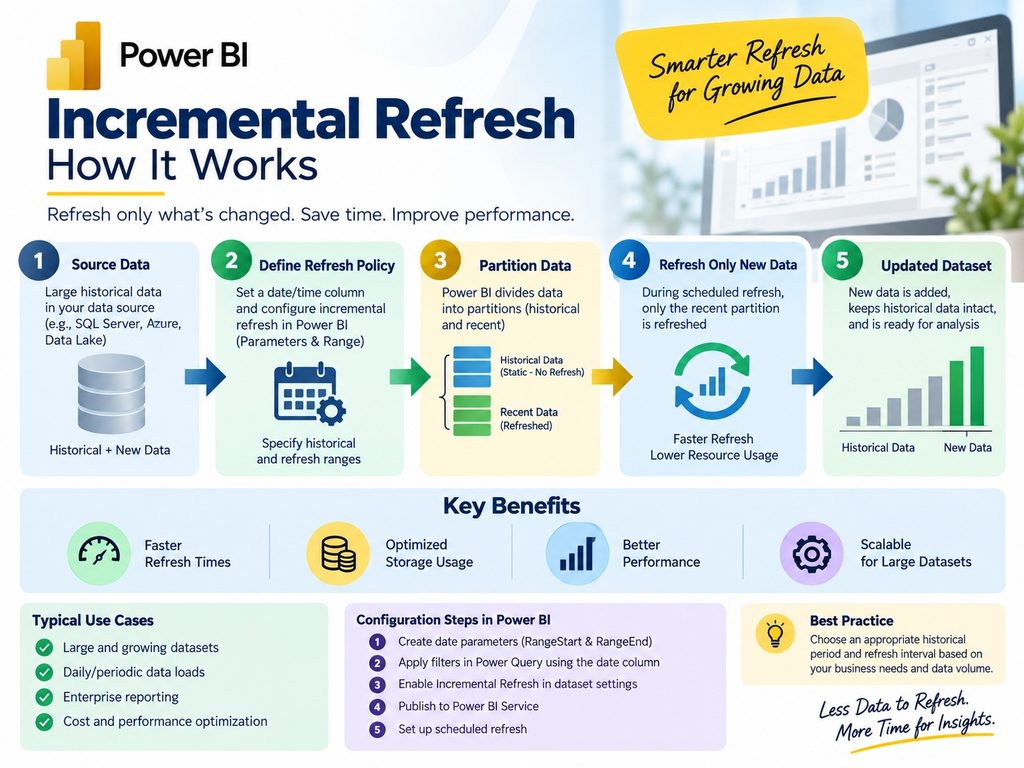
Power BI Incremental Refresh Documentation: The Complete 2026 Guide for Business Owners
Power BI incremental refresh documentation is the single most overlooked reason business dashboards slow down as data grows. If your Power BI reports take longer to refresh every month, or your Power BI Service capacity keeps hitting limits, the fix usually isn’t more hardware — it’s a properly documented incremental refresh policy.
This guide breaks down everything a business owner, analyst, or IT decision-maker needs to know: what Power BI incremental refresh documentation actually covers, how to set it up correctly, and how to avoid the mistakes that cause silent data errors. Whether you manage this in-house or work with a data analytics partner like Ally Tech Services, understanding this process will save you hours of refresh time and prevent costly reporting mistakes.
Who Actually Needs This Guide?
You’ll get the most value from this article if any of the following sound familiar:
- Your Power BI dataset refresh takes 20+ minutes and keeps getting slower
- Your Power BI Service or Premium capacity throws timeout or memory errors during refresh
- Nobody on your current team can explain why the refresh policy is set up the way it is
- You’re onboarding a new analyst or vendor and need to hand off a working, documented dataset
- You’re preparing for a Power BI audit, capacity planning review, or a migration to a new workspace
If even one of these applies, the time invested in proper Power BI incremental refresh documentation pays for itself within the first few refresh cycles. If you’re unsure where your setup currently stands, our team can review it — get in touch with Ally Tech Services for a quick assessment.
What Is Power BI Incremental Refresh Documentation?
Power BI incremental refresh documentation refers to the structured record of how a dataset’s refresh policy is configured — which date columns are used, how far back historical data is archived, how many days of “hot” data are refreshed, and which partitions are excluded from full reloads.
Without this documentation, most teams either:
- Refresh the entire dataset every time (slow, expensive, and unnecessary), or
- Configure incremental refresh once and never record the logic — so when someone new joins the team, nobody can explain why numbers occasionally look off.
Good Power BI incremental refresh documentation answers four questions clearly: what data changes, how often, how it’s partitioned, and who owns the policy.
Why Incremental Refresh in Power BI Matters for Growing Businesses
Incremental refresh in Power BI isn’t just a performance feature — it’s a cost-control and reliability feature. As transactional data grows into millions of rows, a full dataset refresh can take 30+ minutes, consume Premium capacity, and even fail outright due to gateway timeouts.
With incremental refresh in Power BI configured and documented properly, only new or changed rows are processed. This typically reduces refresh time by 70–90% for large fact tables, according to Microsoft’s own performance benchmarks.
Prerequisites Before You Start Documenting
Before writing any Power BI incremental refresh documentation, confirm these three technical prerequisites are in place — skipping them is the most common reason incremental refresh configuration fails on the first attempt. (If your team is still building foundational skills here, our SQL course covers exactly this kind of source-side data modeling.)
- A Date/DateTime column exists on the fact table and is not calculated by a measure (it must be a native column from the source query).
- The data source supports query folding. Incremental refresh relies on Power Query pushing filter logic back to the source (SQL Server, Azure SQL, most cloud warehouses). Sources that don’t fold — like some flat files or certain APIs — will still process the full dataset internally, defeating the purpose. Microsoft’s query folding guidance is worth bookmarking if your team is new to this concept.
- Storage mode and licensing are confirmed. Standard incremental refresh works on Power BI Pro; hybrid tables (mixing imported historical data with DirectQuery for “today’s” data) require Premium or Premium Per User.
Document all three in your policy notes — future troubleshooting almost always starts by checking whether one of these assumptions silently broke (e.g., someone swapped the data source and query folding stopped working).
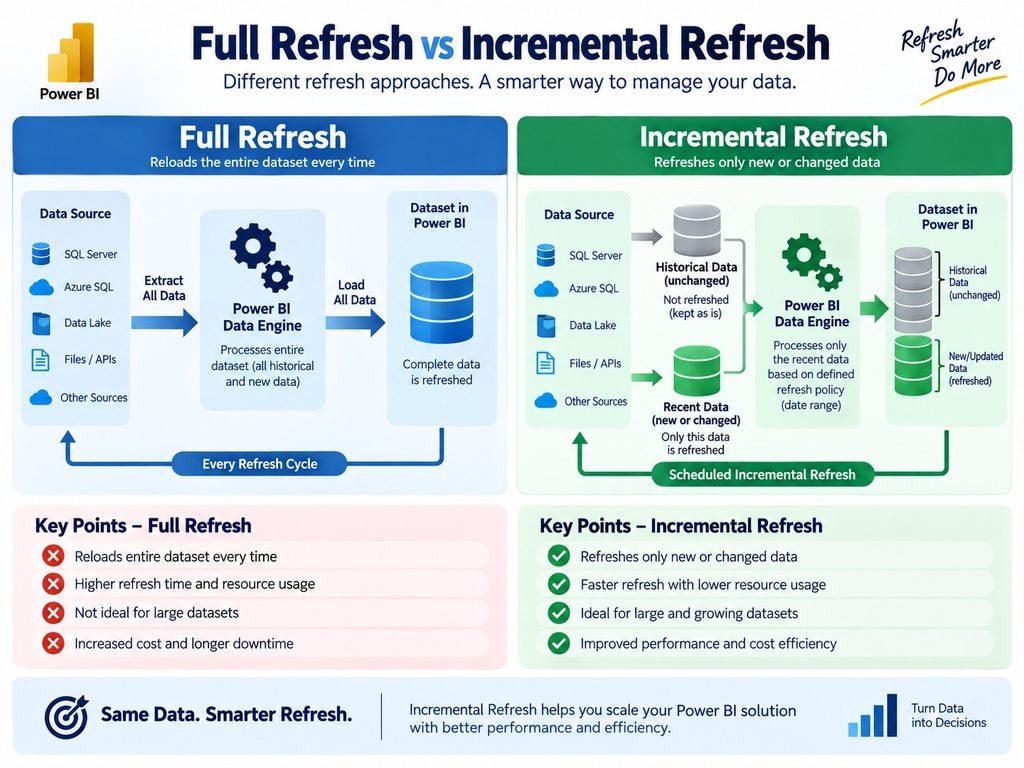
Full Refresh vs. Incremental Refresh: A Quick Comparison
| Factor | Full Refresh | Incremental Refresh |
|---|---|---|
| Refresh time (10M+ rows) | 20–60+ minutes | 2–10 minutes |
| Gateway/capacity load | High | Low |
| Risk of timeout failure | High | Low |
| Historical data handling | Reprocessed every time | Archived, untouched |
| Suitable for | Small, static datasets | Large, growing transactional datasets |
| Documentation complexity | Minimal | Requires structured policy documentation |
How to Set Up Power BI Incremental Refresh Documentation (Step-by-Step)
Power BI incremental refresh documentation should be created the same day you configure the policy — not retroactively. Here’s the practical workflow Ally Tech Services follows with client dashboards.
| Step | Action | What to Document |
|---|---|---|
| 1 | Create RangeStart / RangeEnd parameters | Parameter names, data types, default values |
| 2 | Apply date filter to the fact table | Which date column is used as the filter |
| 3 | Define Archive and Refresh periods | E.g., “Archive 3 years, Refresh last 10 days” |
| 4 | Enable “Detect data changes” (optional) | Which change-detection column is used |
| 5 | Publish to Power BI Service | Workspace, dataset owner, refresh schedule |
| 6 | Validate partitions in XMLA endpoint | Screenshot/log of partition creation |
| 7 | Record policy in a shared doc | Owner, last review date, business justification |
Here’s what each step actually involves in practice, and what should end up written down for each one.
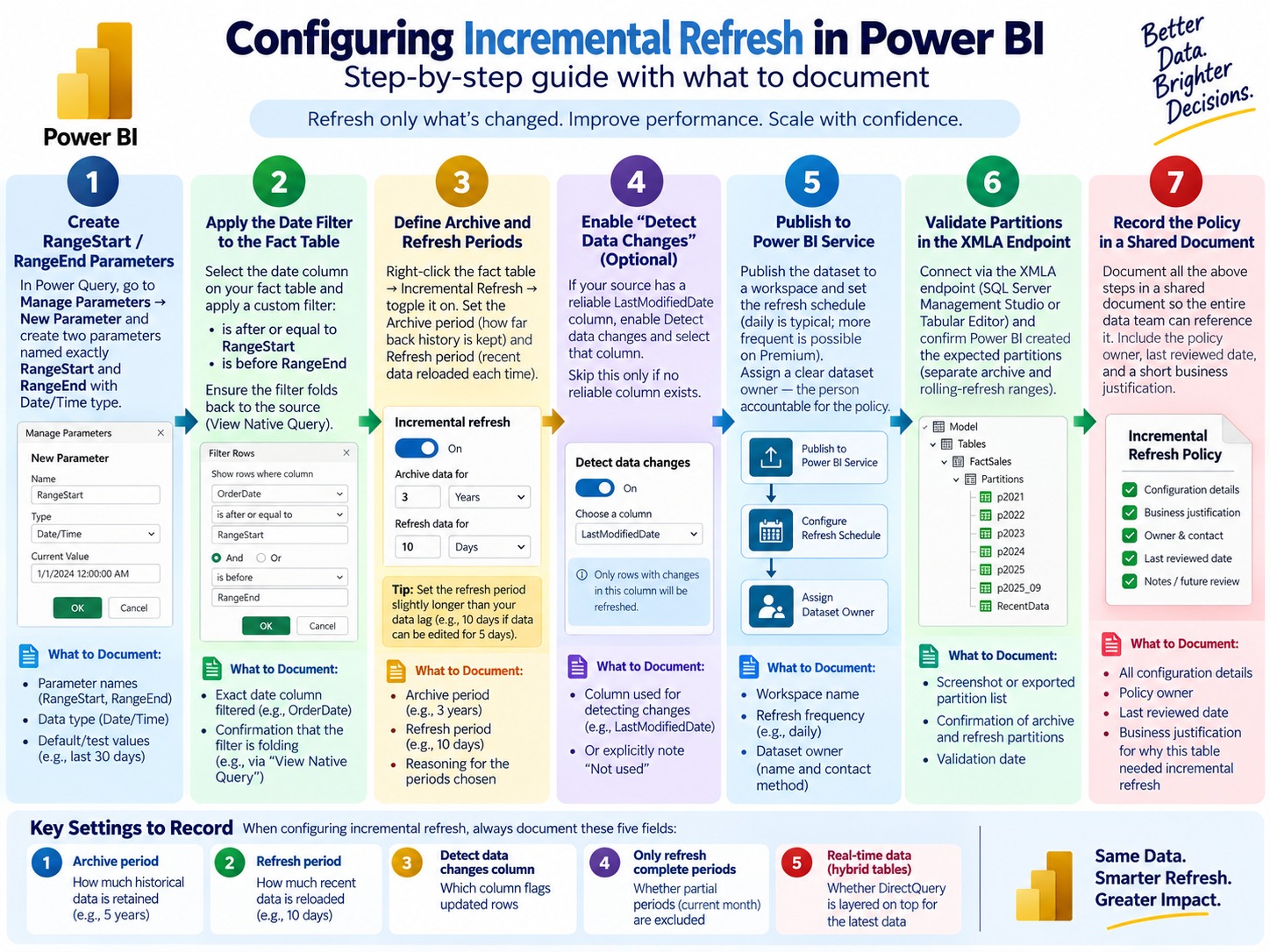
Step 1: Create RangeStart / RangeEnd Parameters
In Power Query, go to Manage Parameters → New Parameter and create two parameters named exactly RangeStart and RangeEnd, both set to Date/Time type — this exact naming is how Power BI’s incremental refresh engine recognizes the filter window.
Set temporary test values (e.g., a recent 30-day range) to preview the filtered query in Desktop before publishing. Document: parameter names, data type, and the test values used.
Step 2: Apply the Date Filter to the Fact Table
Select the date column on your fact table and apply a Custom Filter: is after or equal to RangeStart and is before RangeEnd. This is what Power Query later folds back to the source.
Document: the exact column filtered, and confirm via “View Native Query” that the filter is folding — if it isn’t, incremental refresh won’t deliver its performance benefit.
Step 3: Define Archive and Refresh Periods
Right-click the fact table → Incremental Refresh → toggle it on. Set the Archive period (how far back history is kept, e.g., 3 years) and Refresh period (recent data reloaded each time, e.g., last 10 days).
Rule of thumb: set the refresh period slightly longer than your typical “data lag” — if records can be edited up to 5 days after entry, use a 10-day window as a safety margin. Document: the periods chosen and the reasoning behind them.
Step 4: Enable “Detect Data Changes” (Optional but Recommended)
If your source has a reliable LastModifiedDate column, enable Detect data changes and point it there — this refreshes only rows that actually changed, instead of the whole window every time.
Skip this only if no reliable column exists; don’t fake it. Document: the column used, or explicitly note “not used” so nobody re-investigates it later.
Step 5: Publish to Power BI Service
Publish the dataset and set the refresh schedule (daily is typical; more frequent is possible on Premium). Assign a clear dataset owner — the person accountable for the policy, not just whoever published it.
Document: workspace name, refresh frequency, and the named owner with a contact method.
Step 6: Validate Partitions in the XMLA Endpoint
Connect via the XMLA endpoint (SQL Server Management Studio or Tabular Editor) and confirm Power BI created the expected partitions — separate archive and rolling-refresh ranges. This catches configuration errors before they hit production.
Document: a screenshot or exported partition list, plus the validation date.
Step 7: Record the Policy in a Shared Document
Transfer everything above into the shared documentation template (see below) — not a personal notebook. Include the policy owner, last reviewed date, and a short business justification for why this table needed incremental refresh.
Document: all of the above, stored where the whole data team can find it.
Configuring Incremental Refresh in Power BI: Key Settings to Record
When you configure incremental refresh in Power BI through Power Query’s “Incremental Refresh” dialog, document these five fields every time — they’re the fields most teams forget to record, and the ones that cause confusion later:
- Archive period — how much historical data is retained (e.g., 5 years)
- Refresh period — how much recent data is reloaded each time (e.g., 10 days)
- Detect data changes column — if used, which column flags updated rows
- Only refresh complete periods — whether partial periods (current month) are excluded
- Real-time data (hybrid tables) — whether DirectQuery is layered on top for the latest data
Common Documentation Mistakes That Break Reports
Even experienced teams make these errors — and they’re the most common support requests Ally Tech Services receives from business owners:
- No source system timezone documented, causing off-by-one-day data gaps
- RangeStart/RangeEnd parameters renamed without updating documentation
- “Detect data changes” column missing an index, silently slowing every refresh
- No owner assigned, so nobody notices when a policy stops matching business needs
- Undocumented exceptions — e.g., one table excluded from incremental refresh for a valid reason nobody remembers six months later
Business impact: Undocumented refresh policies are one of the top causes of “the dashboard numbers don’t match the source system” complaints we see when auditing client Power BI environments.
Real-World Impact: What Fixing This Actually Looks Like
To show why Power BI incremental refresh documentation matters beyond theory, here’s a typical before-and-after pattern we see when auditing a mid-sized business’s sales or operations dataset:
| Metric | Before (Full Refresh, No Docs) | After (Documented Incremental Refresh) |
|---|---|---|
| Refresh duration | 38 minutes | 4 minutes |
| Refresh failures per month | 3–5 (gateway timeouts) | 0–1 |
| Premium capacity usage during refresh | High, occasionally throttled | Minimal |
| Time to onboard a new analyst to the dataset | 2–3 days of tribal knowledge | Under 1 hour, using documentation |
| Data discrepancy support tickets | 4–6 per quarter | Near zero |
These numbers vary by dataset size and source system, but the pattern is consistent: the refresh gets faster, and — just as importantly — the documentation removes the guesswork that causes data trust issues down the line. This is the kind of audit-and-fix work our team does regularly — see our about us page for our background in data analytics consulting and training.
A Simple Documentation Template You Can Reuse
Every dataset with incremental refresh enabled should have a short, living document — a single page is enough. At minimum, include:
- Dataset name & workspace: where it lives in the Power BI Service
- Fact table(s) using incremental refresh: table name and row count at time of setup
- RangeStart / RangeEnd parameter values
- Archive period / Refresh period
- Detect data changes column (if used) and why
- Data source & query folding confirmation
- Policy owner and last reviewed date
- Known exceptions (tables intentionally excluded, and why)
Store this alongside your Power BI Service workspace documentation (SharePoint, Confluence, or even a pinned Teams document) — not buried in someone’s personal notes. Want more templates like this? Browse the Ally Tech Services blog for additional Power BI and data analytics guides.
Troubleshooting: When Incremental Refresh Doesn’t Behave as Documented
Even with solid Power BI incremental refresh documentation, issues come up. Here’s a quick diagnostic table for the most common ones:
| Symptom | Likely Cause | Fix |
|---|---|---|
| Refresh still takes as long as before | Query folding broken (source changed, or a transformation step blocks folding) | Check the “View Native Query” option in Power Query; move non-folding steps later in the query |
| Historical data changes unexpectedly | “Detect data changes” column missing or misconfigured | Confirm the column reliably updates on every row change, not just inserts |
| Refresh fails only in Power BI Service, works in Desktop | Gateway or dataset credentials issue, not incremental refresh itself | Check gateway logs and data source credentials separately |
| Current month/period numbers look incomplete | “Only refresh complete periods” is enabled | This is expected behavior — document it clearly so users aren’t confused |
| Partitions not visible in XMLA endpoint | Publishing didn’t create partitions correctly, or workspace isn’t Premium/PPU | Confirm capacity type; republish the dataset |
Documenting these fixes as you encounter them turns your policy notes into a genuinely useful troubleshooting reference — not just a setup record. For deeper diagnostics on partition-level issues, Microsoft’s dataset partitions and XMLA endpoint documentation is the authoritative reference. If your team needs hands-on help resolving a recurring refresh issue, our Data Analytics course covers troubleshooting workflows like these in depth, or you can reach out directly for a one-off audit.
Why This Matters for E-E-A-T and Long-Term SEO (For Data Teams Publishing Documentation)
If your organization publishes internal or public-facing Power BI incremental refresh documentation, structure it the way search engines and AI systems now expect:
- Experience — include real configuration screenshots and version numbers, not generic theory
- Expertise — credit the author/team (e.g., a certified Power BI consultant)
- Authoritativeness — reference Microsoft’s official documentation directly
- Trustworthiness — date-stamp the document and note the Power BI version it applies to
For the technical mechanics of incremental refresh in Power BI, Microsoft’s official documentation remains the authoritative source:
- Microsoft Learn: Incremental refresh and real-time data for datasets
- Microsoft Learn: Configure incremental refresh and real-time data
When to Bring in a Power BI Documentation Partner
Many business owners configure Power BI incremental refresh documentation correctly the first time — and then never revisit it as data volume, source systems, or team members change. If your reports have started slowing down, or nobody on your team can explain the current refresh policy, it’s a sign your documentation has drifted from reality.
This is exactly the kind of gap Ally Tech Services closes for clients — auditing existing Power BI datasets, rebuilding incremental refresh policies correctly, and documenting them so future team members aren’t left guessing.
Want your Power BI reports audited for free? Contact Ally Tech Services and we’ll review your current refresh setup within 48 hours.
Learn Power BI Incremental Refresh Hands-On
If you’d rather build this expertise in-house, Ally Tech Services runs hands-on, project-based training covering incremental refresh in Power BI, dataset optimization, and full BI documentation practices:
- Power BI Course in BTM Layout
- Data Analytics Course in BTM Layout
- Advanced Excel Course
- SQL Course
- AI & ML Course
We also run classes across Bengaluru, including BTM 1st Stage, BTM 2nd Stage, BTM 3rd Stage, Jayanagar, JP Nagar, and Bannerghatta Road. See the full list of locations or our complete course catalog.
Learn more about our team’s background on the About Us page, meet our trainers, or check our government certification recognition. Explore more guides like this on the Ally Tech Services blog, or see career opportunities if you’re looking to join a growing data analytics team.
Frequently Asked Questions
What is Power BI incremental refresh documentation used for?
It records how a dataset’s refresh policy is configured — archive period, refresh period, date columns, and ownership — so the setup can be understood, audited, and maintained by anyone on the team, not just the original creator.
How is incremental refresh in Power BI different from a scheduled refresh?
A scheduled refresh reloads the entire dataset at set times. Incremental refresh in Power BI only reloads new or changed data within a defined recent window, leaving historical partitions untouched — dramatically reducing refresh time.
Does incremental refresh require Power BI Premium?
No. Incremental refresh works with Power BI Pro, though larger-scale, XMLA-endpoint-based partition management benefits from Premium or Premium Per User capacity.
How often should Power BI incremental refresh documentation be reviewed?
At minimum every 6 months, or immediately after any change to source systems, data volume, or the refresh policy itself.
Final Thoughts
Power BI incremental refresh documentation isn’t optional paperwork — it’s the safety net that keeps your reports fast, accurate, and maintainable as your business scales. Whether you configure it yourself or bring in specialists, documenting incremental refresh in Power BI properly today saves hours of troubleshooting tomorrow.
Ready to fix slow Power BI refreshes for good? Get in touch with Ally Tech Services or explore our Power BI training programs to build this skill on your own team.